BLOG

Tali AI Product Team
July 22, 2026

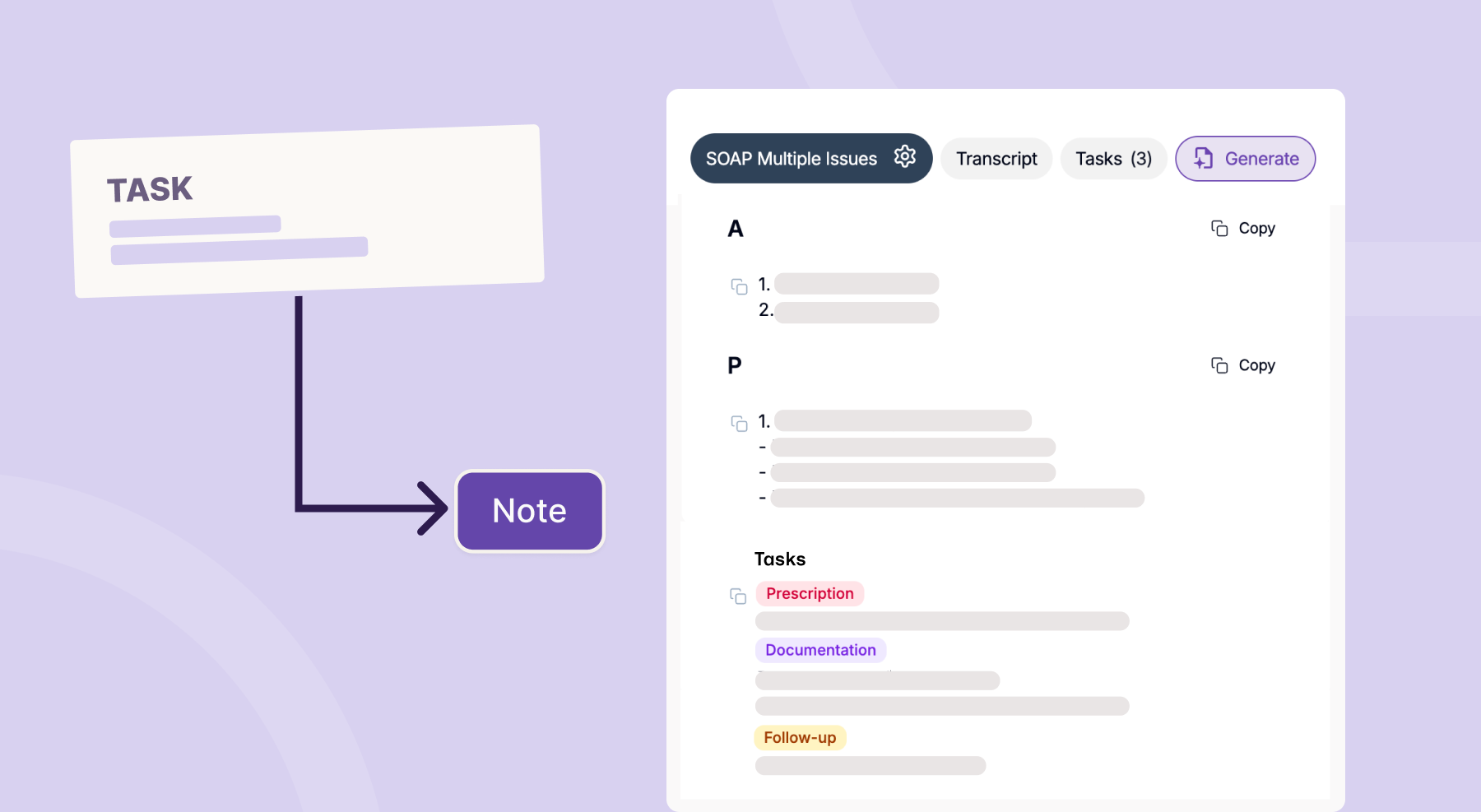
Follow-up actions are part of the care plan, but they often live outside the note. With Add Tasks to Notes, Tali helps close that gap by bringing approved tasks directly into the Plan section of your clinical documentation.
We know that parts of task management often continue in the EMR, so this update helps carry AI-generated follow-up actions into the workflow clinicians already use after the visit. The result is a more connected path from encounter to note to next steps, with follow-up actions preserved in the patient chart where they can support the work that happens after the encounter.
Clinicians often move between documentation, follow-up planning, and EMR workflows. When these steps are disconnected, important next steps may need to be copied, re-entered, or managed separately from the note.
Add Tasks to Notes helps make that workflow more connected.
Context stays intact
Approved tasks stay alongside the clinical reasoning and care plan that created them.
Less manual entry
Follow-up actions can be carried into the note without copying and pasting from one place to another.
A more complete patient chart
Tasks are added under the Plan section, so they can be included when the note is sent to the EMR.
A smoother post-visit workflow
Follow-up items remain easier to find and act on after the encounter is complete.
Once Add Tasks to Notes is enabled, Tali can add approved tasks to eligible generated notes that include a P or Plan section.
The workflow is simple:
Approved tasks are then added to the bottom of the Plan section, grouped by category, so they can stay connected to the documentation when the note is sent to the EMR.
For best results, generate your note first, then review and approve your tasks.
This update does not change how you review, edit, or approve tasks in Tali. Approved tasks will continue to be added to your Task Library as before.
Now, when the setting is enabled, approved tasks can also be carried into the note, helping connect the encounter, documentation, and follow-up workflow without adding extra steps.
A clinical note should not only capture what happened during the encounter. It should also help support what needs to happen next.
With Add Tasks to Notes, Tali helps make follow-up actions easier to preserve, easier to find, and easier to carry forward as part of the patient chart.
To learn how to enable and use this feature, visit the Add Tasks to Notes knowledge base article.
Experience the future of healthcare documentation with Tali's AI-powered solutions.
Start Free TrialRelated Articles
Product & Features
July 30, 2026
Product & Features
July 23, 2026
Product & Features
July 23, 2026

Research
July 22, 2026
4
Research
July 22, 2026
4
Research
July 22, 2026
4