BLOG

Tali AI Product Team
September 15, 2026

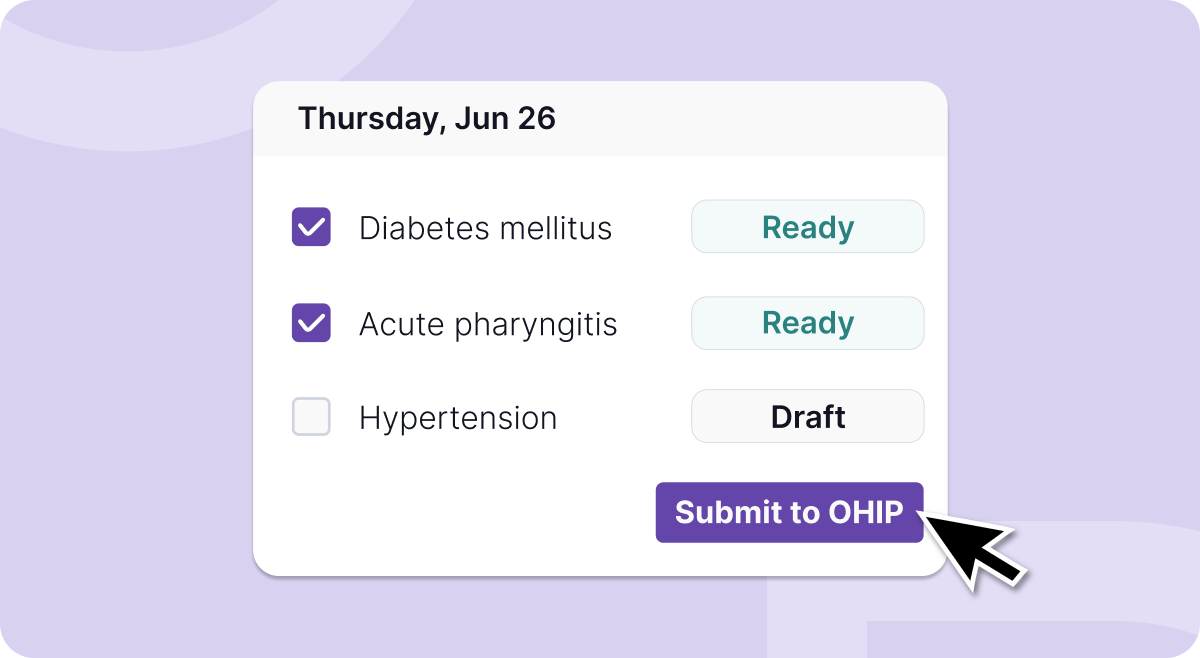
Billing should not begin at the end of a long clinic day.
It should not require clinicians to reopen charts, reconstruct what happened during each visit, search for the right codes, and then move everything into another system for submission.
With Tali, billing begins as part of the encounter itself.
Every encounter completed in Tali automatically creates a claim. Tali brings forward relevant billing recommendations, gives your team one place to review and prepare claims, and lets you submit them directly to OHIP through MC EDT, the Ministry of Health’s Medical Claims Electronic Data Transfer system.
The result is a simpler path from patient care to payment, with the clinician or clinic team in control at every step.
As an OHIP billing app built directly into your clinical workflow, Tali helps Ontario clinics:
Nothing is submitted automatically. Your team reviews and approves every claim before it is sent.
The billing workflow begins with the clinical visit.
As Tali captures the encounter and creates the clinical note, the information needed for billing is already present: what happened, what was assessed, and what care was provided.
Once the encounter is completed, Tali automatically creates a corresponding claim. There is no separate claim to start and no need to re-enter the visit from scratch.
This keeps documentation and billing connected from the beginning, rather than treating them as separate jobs handled at different points in the day.
After the encounter, Tali recommends relevant billing and diagnostic codes based on the clinical context.
These recommendations go beyond simply detecting keywords in the note. Tali can cross-reference the patient’s billing history to help evaluate eligibility rules and previous billing activity before presenting a recommendation.
Instead of relying entirely on memory or manually checking multiple sources, the clinician can review the relevant information while the encounter is still fresh.
The recommendation remains exactly that: a recommendation.
The clinician decides which codes are appropriate, makes any necessary changes, and confirms what should be billed. Tali supports the decision without taking control away from the provider.
Every generated claim appears on the Claims page, giving clinicians and clinic teams a clear queue of billing work.
Claims can be filtered and reviewed by status or provider. From the same workspace, your team can see which claims still need attention, which have been saved as drafts, and which are ready to submit.
Open a claim to:
The workspace is designed around the way a clinic actually processes billing: identify what needs attention, review the claim, make changes, approve it, and then submit it to OHIP.
This makes it easier to work through an entire clinic day without jumping between patient charts, spreadsheets, and separate submission tools.
Not every claim begins with a recorded encounter.
There may be times when you need to bill for work completed outside Tali or create a claim without generating a clinical note first.
In those cases, you can create a standalone claim directly from the Claims page. Select the patient, add the appropriate billing and diagnostic codes, and save or approve the claim using the same workflow.
That means your team can manage both Tali-generated claims and manually created claims in one billing queue.
Once a claim has been reviewed, it can be marked as ready for submission.
For individual claims, you can approve the claim, save it as a draft, or approve and submit it immediately.
Clinic teams can also select multiple claims and approve them together. This is especially useful for an MOA, billing clerk, or clinician reviewing a full day’s work at once.
A claim must contain at least one valid claim line before it can be approved, helping prevent incomplete claims from moving forward.
When the claims are ready, select the claims you want to include and submit them to OHIP through Tali’s MC EDT connection.
Before submission, Tali shows a summary of the batch so your team can complete one final review.
Only then are the claims sent.
There is no automatic submission and no loss of oversight. Your team remains responsible for reviewing and approving the claims, while Tali removes the repetitive work involved in preparing and transferring them.
Many billing tools begin after the clinical work is already finished.
That leaves the provider or clinic team to reconstruct the visit, locate the necessary information, determine what should be billed, and manually create the claim.
Tali takes a different approach.
The information needed for billing is captured during the encounter. The claim is created automatically. Recommendations appear while the context is still available. The claim can then be reviewed, approved, and submitted from the same platform.
Connecting these steps reduces duplicate entry, unnecessary context switching, and the operational gaps created when documentation, code selection, and claim submission live in separate systems.
Better billing software should not remove clinical judgment.
It should remove the repetitive work surrounding that judgment.
Tali gives clinicians control over every billing decision while helping clinic teams move claims from encounter to submission with fewer manual steps.
Every visit can become a prepared claim.
Every claim has a clear next step.
And when your team is ready, claims can be submitted directly to OHIP without rebuilding the work somewhere else.
The best way to understand Tali Billing is to see it using the kinds of encounters and billing workflows your clinic handles every day.
If you are still weighing your options, see how Tali compares to other tools in Best OHIP Billing Solutions: A Comparison for Ontario Primary Care.
Book a personalized demo to see how Tali can help your team move from clinical documentation to reviewed, submission-ready OHIP claims in one connected workflow.
Book a demo
What is MC EDT?
MC EDT is the Ontario Ministry of Health’s Medical Claims Electronic Data Transfer system, the channel clinics use to submit OHIP claims electronically. Tali connects to MC EDT so approved claims can be sent directly from the workspace.
Does Tali submit OHIP claims automatically?
No. Tali prepares and recommends claims based on the encounter, but nothing is sent to OHIP until a clinician or clinic team member reviews and approves it.
Can I create an OHIP claim without a recorded encounter?
Yes. Standalone claims can be created directly from the Claims page for work completed outside Tali, using the same review and approval workflow as encounter-based claims.
Is Tali an OHIP-approved billing agent?
Yes. Clinics authorize Tali as an OHIP billing agent through the Ontario Ministry of Health’s MC EDT portal, a one-time setup that lets Tali participate directly in the provincial claims pipeline as part of its broader OHIP billing software.
Experience the future of healthcare documentation with Tali's AI-powered solutions.
Start Free TrialRelated Articles
Product & Features
July 30, 2026
Product & Features
July 23, 2026

Product & Features
July 1, 2026

Research
September 15, 2026
4
Research
September 15, 2026
4
Research
September 15, 2026
4