BLOG

Tali AI Product Team
July 22, 2026

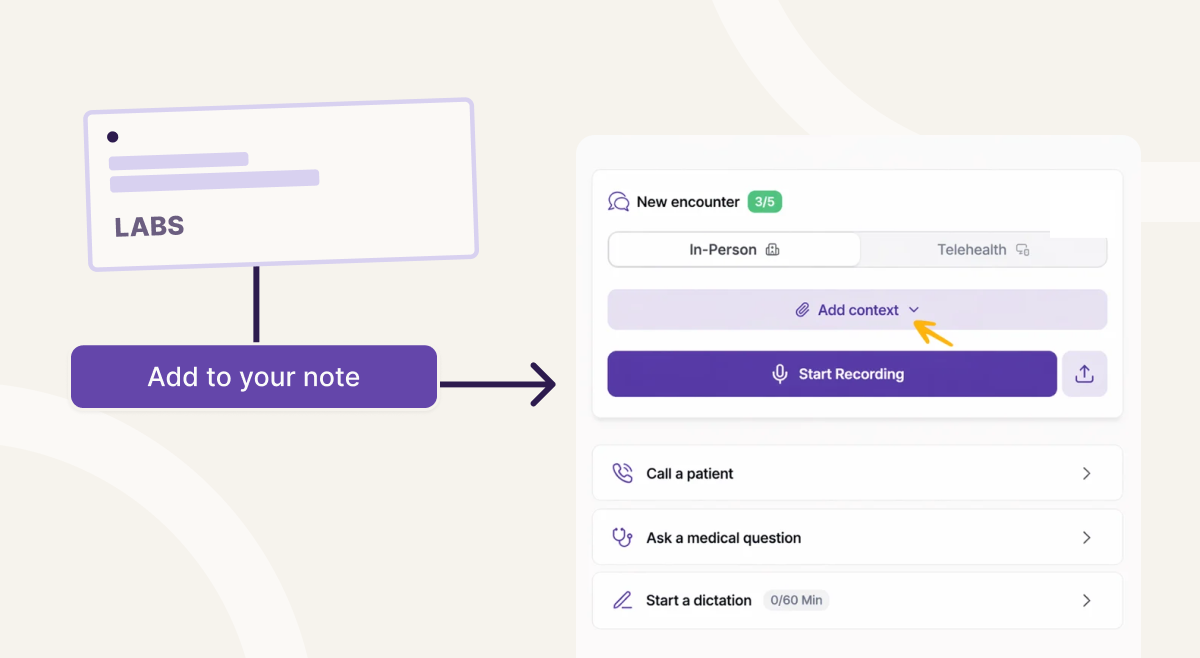
You can now give Tali more context before, during, or after an encounter to help generate more accurate and complete notes.
With Additional Context, you can:
This helps Tali better understand the encounter and produce notes that reflect the full clinical picture.
Not every encounter starts with a blank slate.
Sometimes there’s already important information available before the visit begins:
Other times, new information comes up during the encounter that should be reflected in the final note.
Additional Context allows you to provide that information directly inside Tali, helping generate notes that are more complete, accurate, and tailored to the encounter.
You can add written context and supporting documents in three places:
You can:
If you already have relevant information before the visit begins, you can attach it directly to the encounter before recording starts.
This is useful for:
Tali will use this information when generating the note.
Sometimes important details come up mid-visit.
You can update or add context while the encounter is still in progress, helping ensure the final note reflects the latest information.
This is especially useful when:
You can also add context after a note has already been created and regenerate the note using the updated information.
This helps when:
Tali will regenerate the note using the updated context.
Additional Context can help support more accurate and complete documentation across many workflows.
Examples include:
Clinical documentation rarely happens in isolation.
Important patient information often exists before, during, and after the encounter itself. Additional Context helps bring that information into the same workflow, reducing the need to manually re-enter details or revise notes later.
The result:
You can add up to 5,000 characters of written context.
You can upload up to 3 files per encounter or note.
You can upload up to 10 MB total across all files.
Yes. You can add additional context after a note is created and regenerate the note using the updated information.
You can upload supporting clinical documents such as lab reports, intake forms, referral letters, or other relevant patient documentation.
Experience the future of healthcare documentation with Tali's AI-powered solutions.
Start Free TrialRelated Articles
Product & Features
July 30, 2026
Product & Features
July 23, 2026
Product & Features
July 23, 2026

Research
July 22, 2026
4
Research
July 22, 2026
4
Research
July 22, 2026
4