BLOG

Tali AI Product Team
July 23, 2026

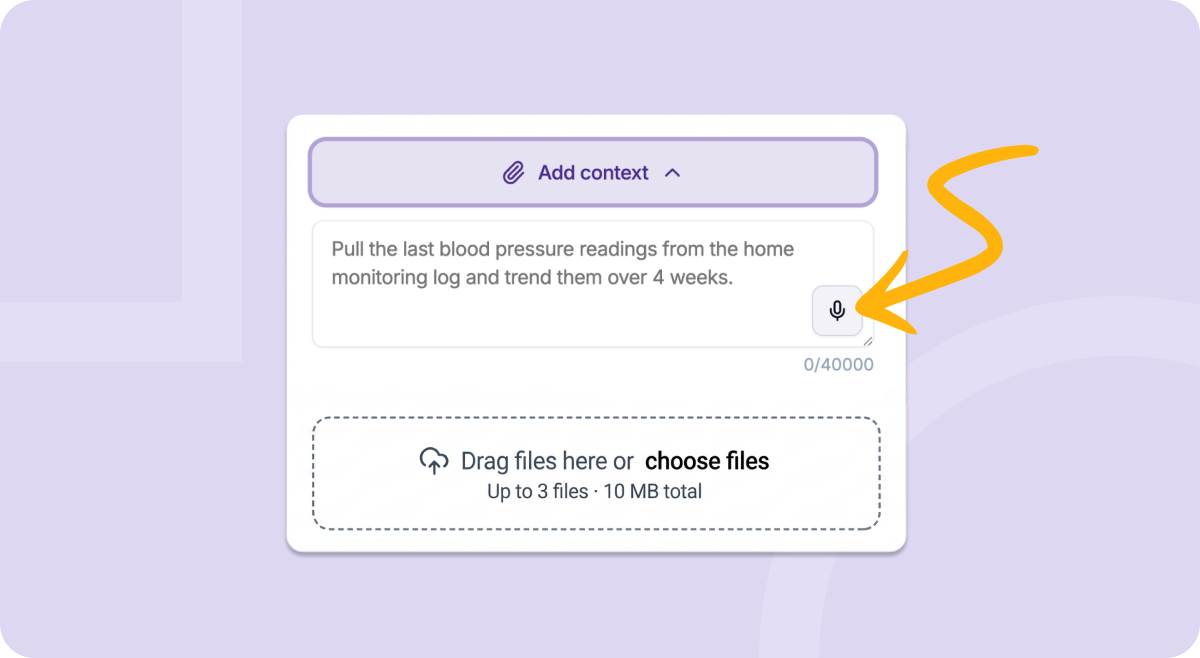
You can now dictate anywhere you can type in Tali, making it faster to add context, search, edit notes, complete forms, and keep your workflow moving without typing.
Clinicians move quickly between patient care, charting, follow-up, and admin work. Even small moments of typing can add up across the day.
That’s why dictation is now built directly into more places across Tali.
Instead of switching between your keyboard and mouse every time you need to add information, you can speak naturally and have your words appear where your cursor is placed.
You can use dictation across supported text areas in Tali, including:
Dictation works wherever your cursor is active.
You can type part of a sentence, place your cursor where you want to add more detail, click the microphone icon, and speak. Tali adds your words directly into that spot.
You can also move between supported fields more easily. If you start dictating in one field and then click the dictation icon in another, Tali pauses dictation in the first field and starts capturing in the next one.
If you close a dialog or pop-up while dictating, Tali automatically stops the session.
Tali’s voice recognition is designed to support clinical language, but it is always recommended to do a quick review before you save, submit, search, or generate.
Pay extra attention to numbers, dosages, acronyms, and names to make sure everything appears the way you intended.
Open any supported text field in Tali, place your cursor, click the microphone icon, and start speaking.
Dictation does not replace the way you already work. It just helps you move through it faster.
Experience the future of healthcare documentation with Tali's AI-powered solutions.
Start Free TrialRelated Articles
Product & Features
July 30, 2026

Product & Features
July 23, 2026
Product & Features
July 23, 2026

Research
July 23, 2026
4
Research
July 23, 2026
4
Research
July 23, 2026
4