 BLOG
TL;DR
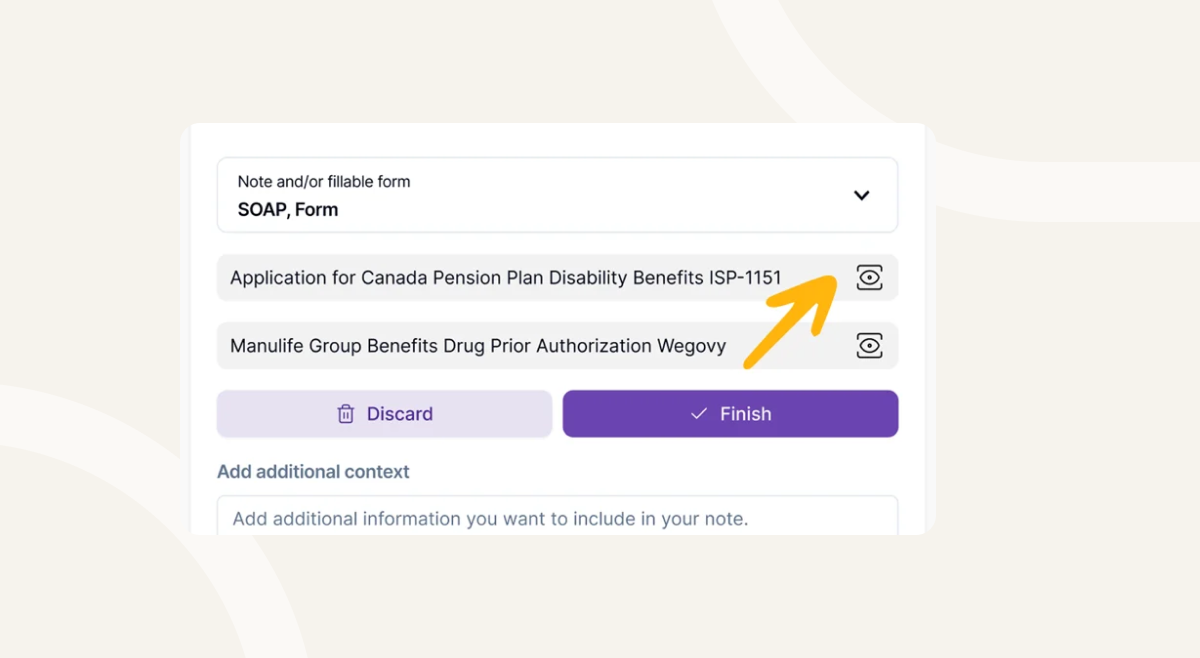
Form Preview lets you review forms while an encounter is still in progress, helping you capture the right information while it’s easiest to confirm.
With Form Preview, you can:
- Review forms during the encounter
- Capture form-specific details in real time
- Reduce missing information in longer forms
- Keep forms connected to the same documentation workflow
- Spend less time reviewing notes after the visit
Keep Forms Connected to the Encounter
Completing forms after a visit often means going back through notes, charts, and patient details to find missing information.
Form Preview helps bring that process into the encounter itself.
Instead of trying to remember what a form requires afterward, you can review the form while the visit is still happening and capture the information as it comes up naturally in conversation.
The result is a smoother workflow, more complete documentation, and less manual review after the encounter.
Why Use Form Preview?
Form Preview helps you:
- Access form requirements while the encounter is still in progress
- Capture details while they are easiest to confirm
- Reduce missing information in longer or more detailed forms
- Support more complete form generation after the encounter
- Spend less time reviewing notes and patient charts afterward
- Keep form completion connected to the same workflow as documentation
How Form Preview Works
1. Start an Encounter
Begin recording your encounter as usual.
2. Open Templates and Forms
During the encounter, open the Templates and Forms dropdown.
3. Select a Form
Go to the Forms tab and choose the form you want Tali to complete.
You can select insurance forms, referral forms, assessment forms, and other supported clinical documentation. You can also select more than one form during the encounter.
4. Preview the Form While Recording
Open the selected form while the encounter is still recording to review the sections and information it requires. This makes it easier to confirm important details during the conversation instead of reviewing charts and notes afterward.
5. Capture Important Details in Real Time
As you review the form, mention any relevant information that should be included, such as symptoms, medications, relevant history, dates, functional impacts, or supporting clinical details.
Because the encounter is still recording, Tali can use this information later when generating the completed form.
6. Finish the Encounter
When you select Finish, Tali uses the encounter transcript to help generate the completed form.
Why This Matters
Forms are often one of the most time-consuming parts of clinical documentation.
The challenge is rarely filling out the form itself, it’s remembering all the information needed after the visit is already over.
Form Preview helps bring that work into the same workflow as the encounter, reducing rework and helping clinicians capture information while it is still top of mind.
The result:
- More complete forms
- Less backtracking after visits
- Fewer missing details
- A smoother documentation workflow
Key Takeaways
- Review forms while the encounter is still recording
- Capture form-specific details in real time
- Reduce missing information in longer forms
- Keep forms connected to encounter documentation
- Spend less time reviewing charts after the visit
FAQ
Does Form Preview fill out the form during the encounter?
No. Form Preview allows you to review the form during the encounter. The form is generated after the encounter is finished.
Can I preview a form while recording?
Yes. You can open and review forms while the encounter continues recording.
Can I select more than one form?
Yes. You can select multiple forms from the Forms tab during an encounter.
What happens if information is missing?
If details are not captured during the encounter, some fields may need to be reviewed or completed manually afterward.
What kinds of forms can I preview?
You can preview supported clinical forms such as referral forms, insurance documentation, assessments, and other workflow-related forms.