BLOG

Tali AI Product Team
July 27, 2026

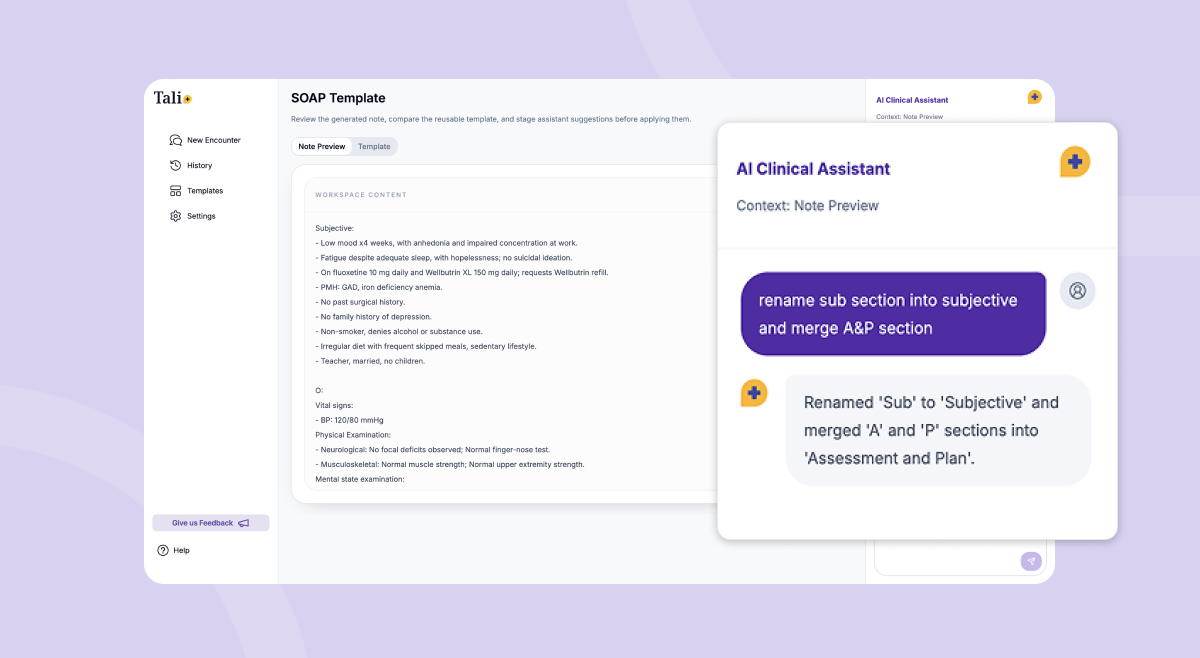
Template Assistant helps you customize supported SOAP templates using plain-language instructions.
Instead of manually editing template instructions, you can describe how you want your notes to sound and feel, preview the result, refine it in chat, and save the version that matches your preferred documentation style.
With Template Assistant, you can:
Every clinician documents a little differently.
Some prefer concise assessments. Others want more structured plans, problem-based headings, or specific phrasing styles. Traditionally, customizing templates meant manually editing instructions and testing changes through trial and error.
Template Assistant is designed to make that process simpler.
Instead of learning prompt-writing techniques or editing template logic directly, you can describe the changes you want in plain language and let Template Assistant update the template for you.
The goal is to make note customization more self-serve, flexible, and easier to refine over time.
Template Assistant can help customize:
For example, you might ask:
“Make the Assessment and Plan more concise and use numbered problem headings.”
Or:
“Keep Subjective in short bullets, but write Assessment and Plan in full sentences.”
Template Assistant updates the preview automatically and explains what changed.
Template Assistant currently supports the following SOAP-family templates:
For other note types, the existing custom instructions experience remains available.
You can access Template Assistant directly from the Templates section in Tali.
Template Assistant will open with the selected template already loaded.
If you are already using the older custom instructions experience for a supported SOAP template, you can move directly into Template Assistant from there.
Open the existing custom instructions page and select Chat with AI from the banner at the top of the screen.
Template Assistant will open using the same template.
If you already have custom instructions configured, you do not need to start over.
You can copy your existing instructions directly into the Clinical Assistant chat, and Template Assistant will use them to update the template automatically.
This allows you to move into the newer experience while keeping the same overall note preferences and structure you already use today.
After pasting your instructions:
Template Assistant can also be accessed while reviewing completed SOAP-family notes.
In eligible notes, you may see a banner prompting you to improve future notes using Template Assistant.
This is useful when a generated note is close to what you want, but you would like future notes from that template to better match your preferred structure, tone, or level of detail.
Once selected, Tali will open the correct template directly inside Template Assistant.
Inside the Clinical Assistant panel, describe the changes you want in plain language.
You can request updates to:
For example:
“Add a section for relevant negatives under Subjective.”
“Use problem-based headings in the Plan and include follow-up timing.”
After you send your request, Template Assistant updates both the preview and the reusable template instructions.
Template Assistant includes two main views:
Shows an example of how future notes may look using the updated template.
Shows the reusable instructions guiding future note generation.
Review both carefully before saving.
If the result is not quite right yet, continue refining the template with follow-up requests such as:
“Undo that change.”
“Make it less detailed.”
“Use a more formal tone.”
You can also select Restore to default to remove your changes and return to the original template.
When the preview matches your preferred style, select Save.
After saving:
Template Assistant works best when requests are specific and iterative.
A few recommendations:
The experience is designed to help you gradually shape templates toward your preferred documentation style over time.
Template customization is often one of the biggest factors influencing note quality, consistency, and editing time.
Template Assistant helps clinicians take more control over how their notes are structured without needing to manually rewrite templates or learn advanced prompting techniques.
The result is a faster, more flexible way to personalize documentation workflows while keeping note generation consistent across future encounters.
Template Assistant currently supports:
Not yet. Other note types still use the existing custom instructions experience.
No. Template Assistant is designed to work with plain-language instructions.
Yes. You can continue the conversation with follow-up requests until the preview matches your preferred style.
Once you save a template using Template Assistant, older custom instructions for that template will no longer apply.
Yes. You can continue refining the template in chat or use Restore to default to return to the original version.
Experience the future of healthcare documentation with Tali's AI-powered solutions.
Start Free TrialRelated Articles
Product & Features
July 30, 2026
Product & Features
July 23, 2026
Product & Features
July 23, 2026

Research
July 27, 2026
4
Research
July 27, 2026
4
Research
July 27, 2026
4